
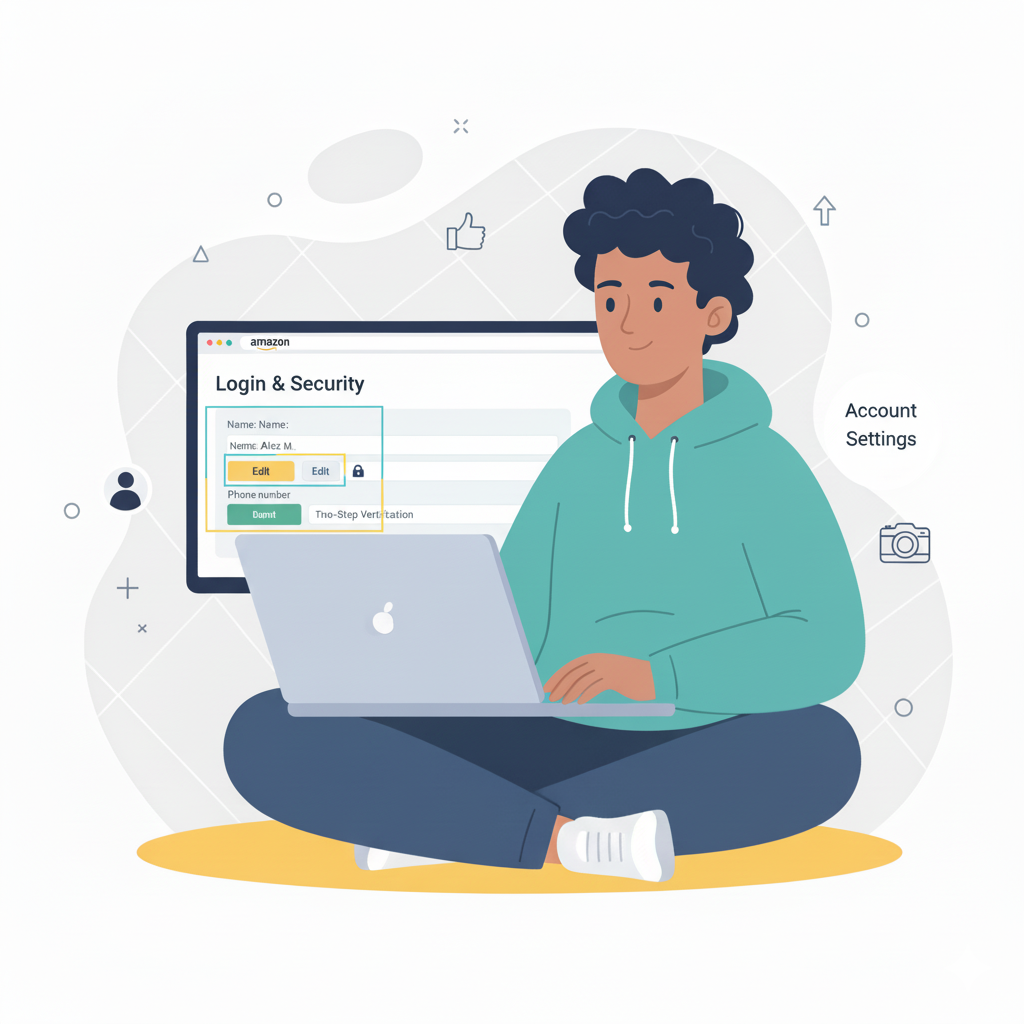
Whether you recently updated your legal name, want a different display name, or simply made a typo during sign-up, Amazon makes it easy to change your name on your account.
Here’s a friendly step-by-step guide to help you update it in just a few minutes.
1. Log In to Your Amazon Account
Go to Amazon and sign in using your usual email and password.
2. Go to “Your Account”
Click on Accounts & Lists at the top right of the page, then choose Your Account.
3. Open the “Login & Security” Section
In your account settings, select Login & Security.
This is where Amazon stores your personal details like your name, email, and phone number.
4. Click the “Edit” Button Next to Your Name
You’ll see your current name displayed.
Click Edit and type in the new name you want to use.
5. Save Your Changes
Once you’ve updated your name, click Save Changes.
Amazon may ask for a quick verification by email or phone to confirm your identity.
Changing Your Public Profile Name (Optional)
If you want to change the name that appears on your reviews, wishlists, or profile:
- Go to Your Account
- Click Your Profiles
- Select Edit your public name
- Enter the new display name
- Save
This is optional but useful if you want a different public-facing name.
Tips to Keep in Mind
- Your display name (reviews/comments) is different from your account name.
- If the system asks for re-verification, simply follow the prompts.
- You can update your name anytime there’s no limit.
Final Thoughts
Changing your name on Amazon is quick and straightforward. Whether you’re correcting a small mistake or updating your information after a personal change, Amazon makes sure the process is simple and secure.